How to Use Qualcomm Flash Image Loader (QFIL) to Flash Firmware
This guide explains how to use Qualcomm Flash Image Loader (QFIL) to flash stock ROM or firmware on Qualcomm Android smartphones and tablets.
QFIL is part of the QPST tool package and works only on Qualcomm chipset devices.
It does not support MediaTek, Spreadtrum (Unisoc), Intel, or other chipsets.
The best part is that QFIL allows you to flash firmware without any flashing box or dongle, using only a computer and USB cable.
What is QFIL Used For?
You can use QFIL when your Qualcomm phone:
- Is stuck on the boot logo
- Does not turn on
- Is soft-bricked after an update
- Has system crashes or serious software issues
- Needs fresh stock firmware installation
QFIL installs official firmware files directly to the Qualcomm CPU.
⚠️ Important Warning
Flashing firmware will erase all data on your phone.
Before starting, you should:
- Backup your photos, videos, and files
- Charge your phone to at least 50%
- Use firmware made exactly for your phone model
Flashing the wrong firmware can permanently damage your device.
Requirements Before Flashing
Make sure you have the following:
- A Windows computer
- A good USB cable
- Qualcomm USB Driver installed
- QFIL Tool downloaded and extracted
- Firmware in Flat Build or Meta Build format
- Programmer file (
prog_emmc_firehose_****.mbn)
Step-by-Step Guide to Use QFIL
Step 1: Install Qualcomm USB Driver

Download and install the Qualcomm USB Driver on your computer.
If the driver is already installed, you can skip this step.
After installation, restart your computer for proper driver loading.
Step 2: Download and Extract QFIL Tool
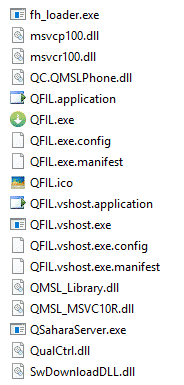
Download the QFIL Tool package and extract it on your computer.
After extraction, you will see multiple files and folders.
Step 3: Run the QFIL Tool
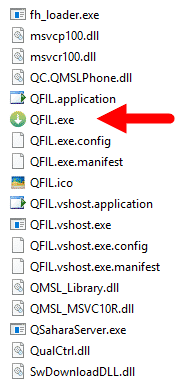
Open the extracted folder and run QFIL.exe.
The QFIL main interface will appear on your screen.
Step 4: Connect Phone in EDL Mode
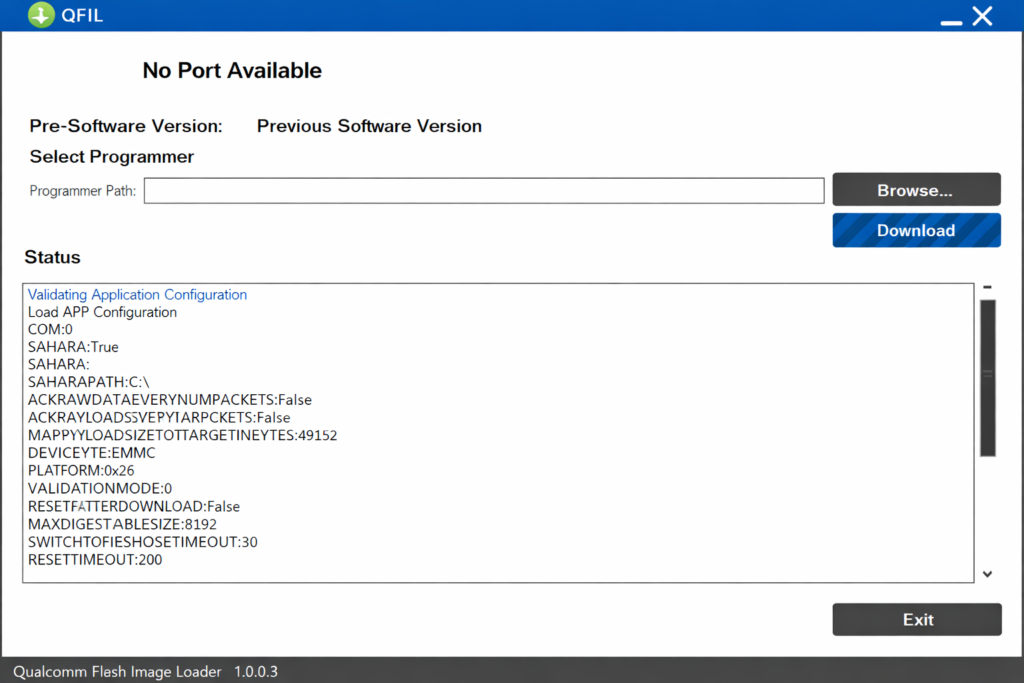
Put your phone into Emergency Download Mode (EDL) before connecting it to the PC.
Once connected correctly:
-
“No Port Available” will change to
Qualcomm HS-USB QDLoader 9008
If the port does not change, the phone is not in EDL mode or drivers are missing.
Step 5: Select Build Type
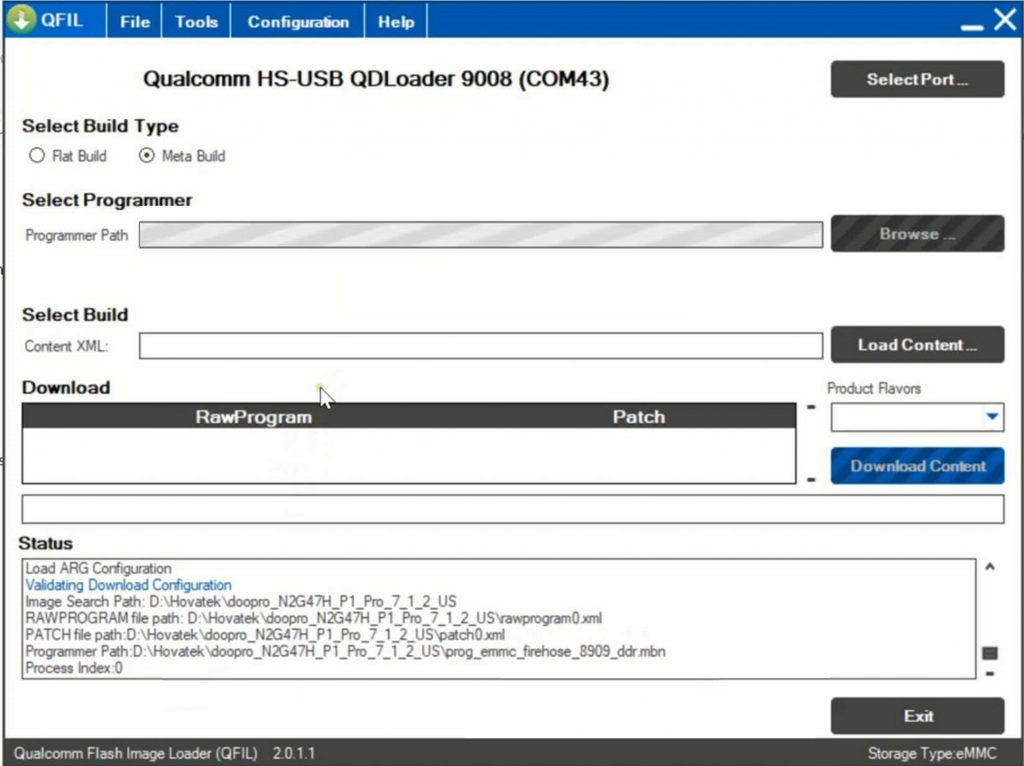
Under Select Build Type, choose Flat Build.
This option is required for most Qualcomm firmware files.
Step 6: Load Programmer File
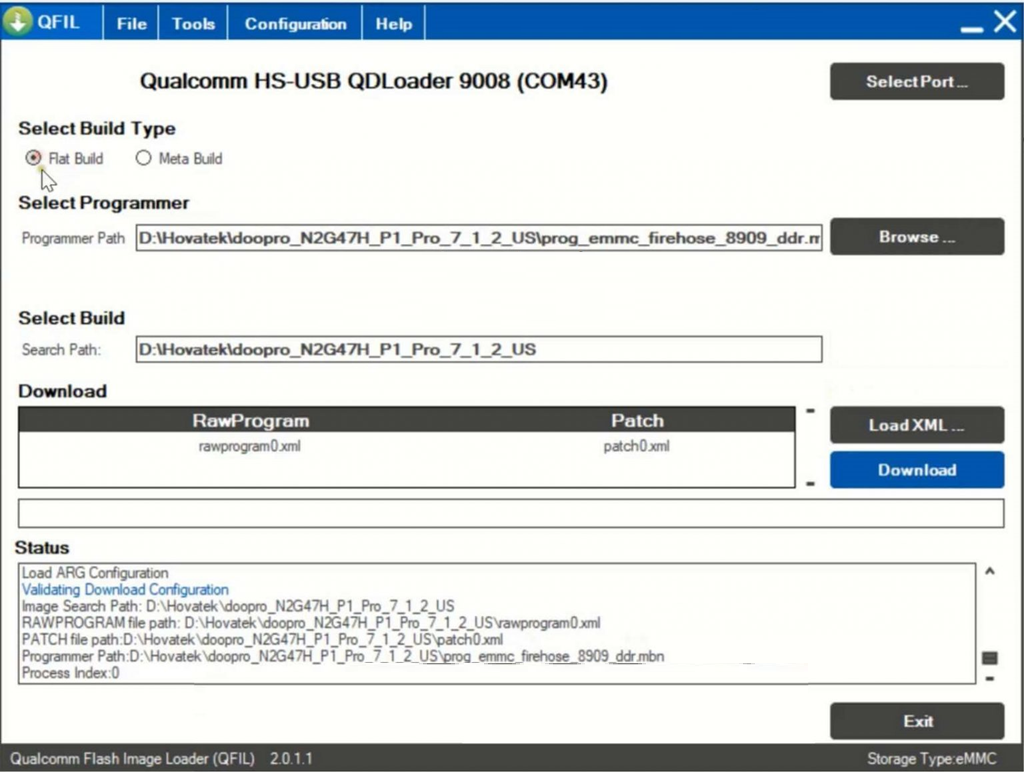
Under Select Programmer, click Browse.
Select the programmer file, usually named like:

prog_emmc_firehose_****.mbn
Click Open to load it.
Step 7: Load XML Files
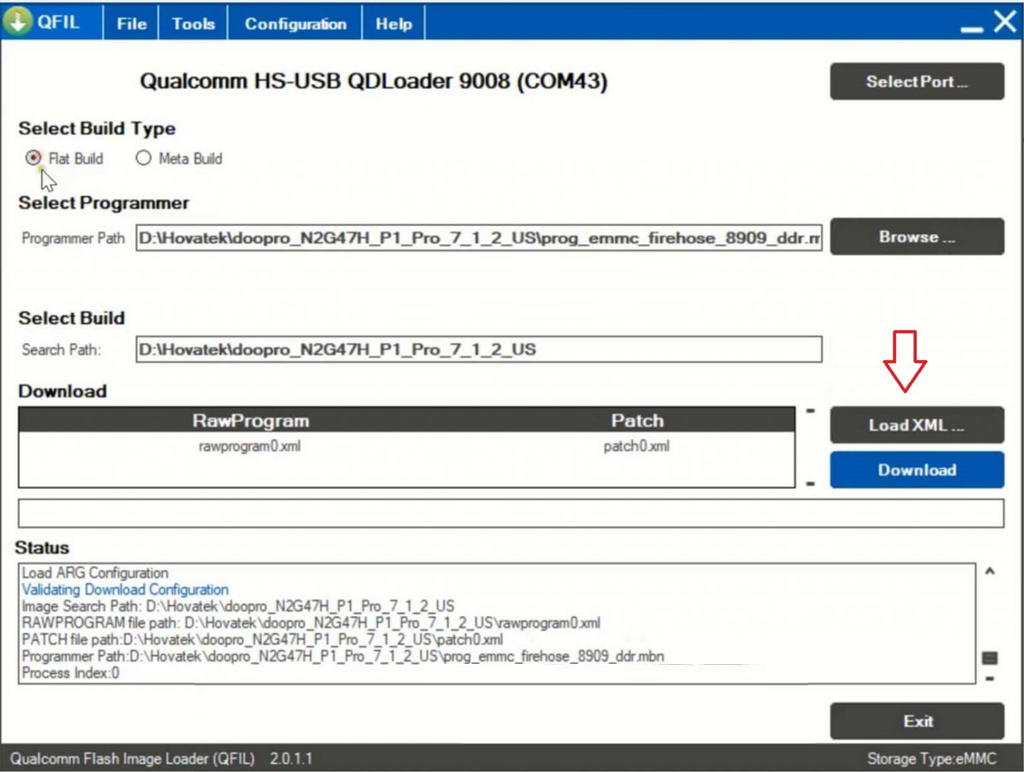
Click Load XML.
First, select the rawprogram.xml file and click Open.
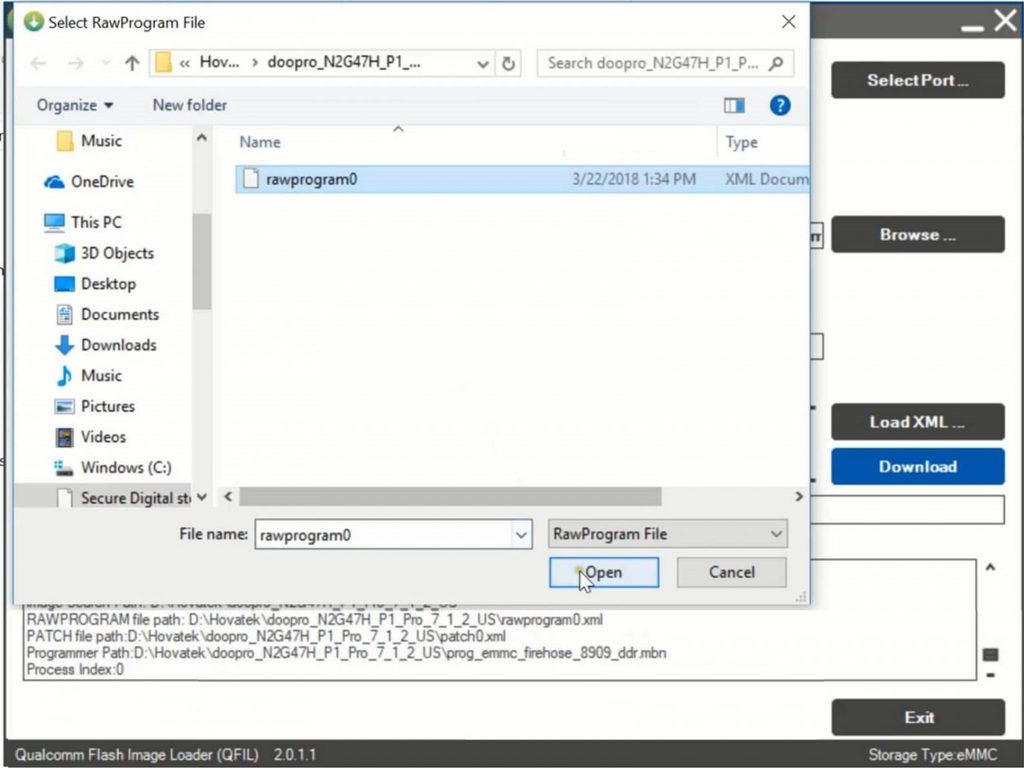
After that, another window will appear automatically.
Now select the patch.xml file and click Open.
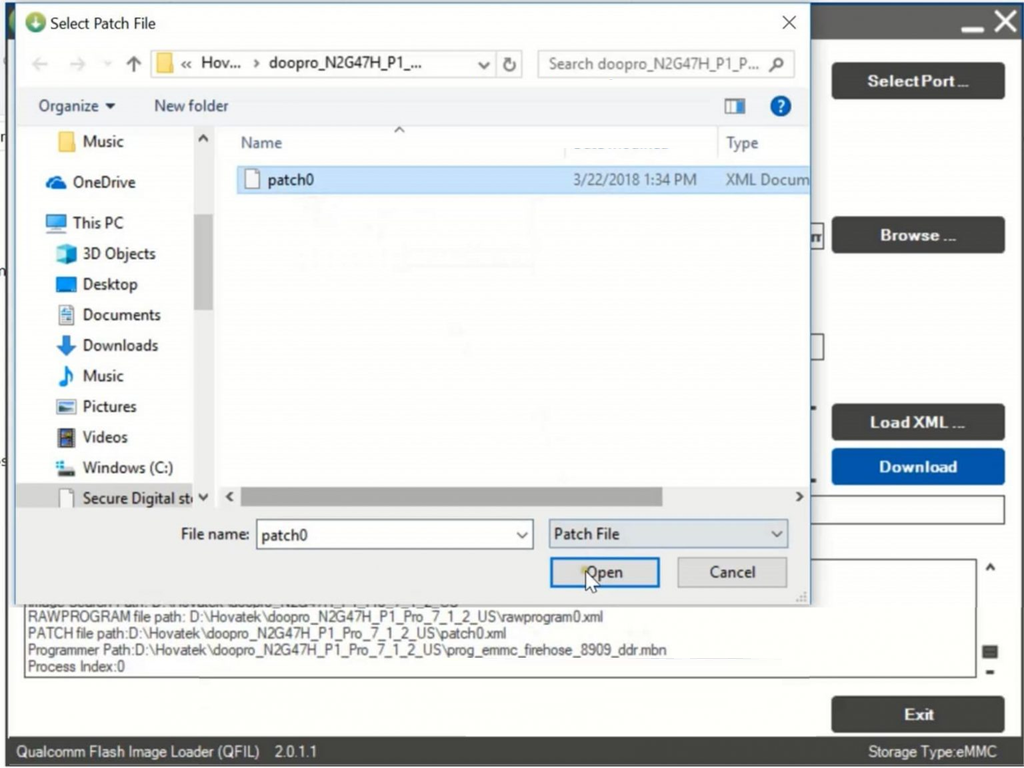
Step 8: Start Flashing
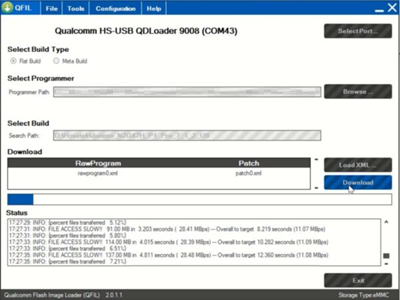
Click the Download button to start flashing.
QFIL will now begin writing firmware to your phone.
Do NOT disconnect the phone during this process.
Step 9: Flashing Completed
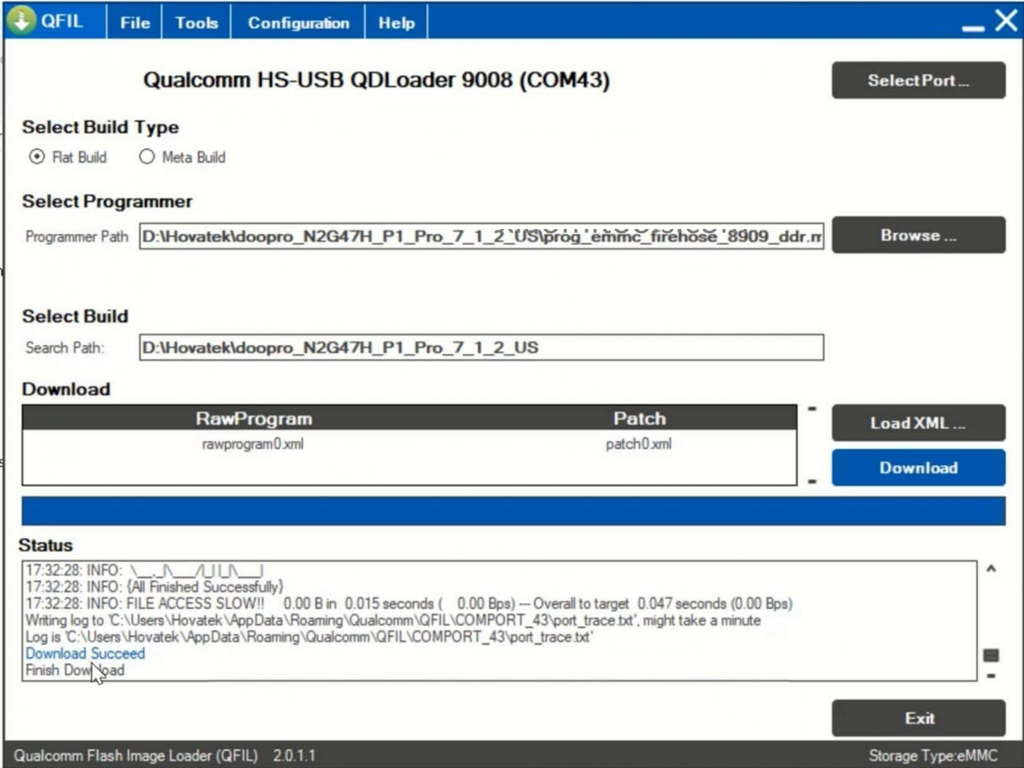
When flashing finishes successfully, you will see:
“Download Succeed – Finish Download”
Now:
- Disconnect the phone
- Power it on
- Complete the initial setup
Important Notes (Must Read)
-
To flash a single file (like
recovery.img), place only that file in the selected folder -
Some firmware packages do not include a programmer file
-
In such cases, you may use a programmer from another phone with the same chipset
-
-
If you get Sahara Fail error, try a different programmer file
-
Always try to backup QCN / EFS before flashing
-
Losing EFS can cause Invalid IMEI, No Baseband, or No Network
-
-
The Download button will stay disabled until all required files are loaded
-
If “No Port Available” remains, check EDL mode or reinstall drivers
-
EDL key combination is different for each phone model
-
Never interrupt flashing or force incompatible firmware
-
This may cause hard brick, requiring JTAG or USB Jig
-
-
QFIL only supports Flat Build or Meta Build firmware
-
OTA update ZIP files are not supported
-
-
Default storage type is eMMC
-
If your phone uses UFS or SPI-NOR, change it under:
Configuration → FireHose Configuration → Device Type
-
Tool Compatibility
QFIL is made only for Qualcomm devices.
Your firmware must include:
.mbnprogrammer file- Qualcomm program files
- QPST-compatible structure